
Editor Quickstart
Run the visual editor from Docker and execute a flow from the UI.
The standalone editor is a Docker image that bundles the visual flow editor and
the octo runtime: a browser-based canvas for designing flows and a Run button
that executes them in the container. No build, no database, no account.
Start the container
docker run -p 3000:3000 -v "$PWD:/work" juancavallotti/octoThe editor reads and writes flow YAML as plain *.yaml files under /work, so
-v "$PWD:/work" makes your current directory the flow store; the files stay on
your disk for octo run or a git commit. Mount an empty directory to start
fresh, or the cloned repo to browse its samples/.
Open the editor
Go to http://localhost:3000. The file menu in the header lists every YAML file in the mounted directory. Open one or create a new flow: the canvas shows the flow's sources and blocks, the palette on the left holds the available blocks, and selecting a block edits its settings.
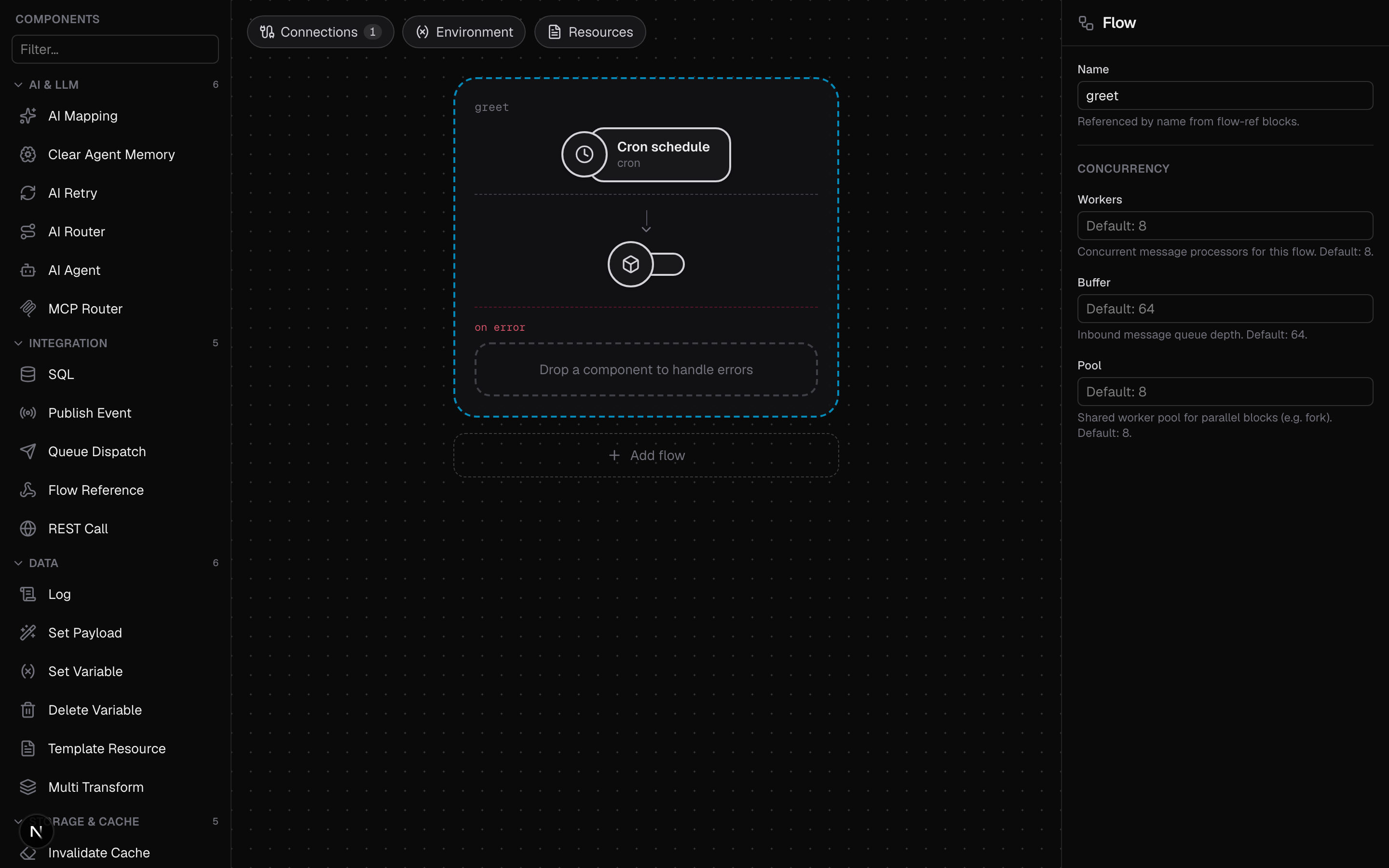
Save and run
Save writes the flow back as a .yaml file in the mounted directory. Hit
Run and the bundled octo binary starts the flow in the container with hot
reload; logs stream into the editor. If the flow serves HTTP, the editor proxies
it and a test URL appears in the console, so publishing a port (for example
-p 8080:8080) is only needed when you run octo run yourself inside the
container.
If a flow declares environment variables, the editor's Dev .env panel edits
their values. They are stored in a shared .env.dev file next to your flows,
and runs read them from there.
The image sets OCTO_FS_DIR=/work, which is why the mount target matters. It
also exposes an MCP server at http://localhost:3000/mcp so an AI assistant can
draft, validate, and run flows against the same files; see
MCP authoring. For the full tour see the
Standalone Editor section.