
Keyboard Shortcuts
Every key the visual editor answers to: running, saving, history, the canvas, CEL fields and the terminal.
The editor answers to a small set of keys, the same in the standalone editor, Octo Desktop and the platform. This page lists them by where they work, so you can drive the common loop — edit, save, run, stop — without reaching for the mouse.
Where a table says ⌘, use Ctrl on Windows and Linux; the editor accepts either modifier on every platform, except for the terminal keys, which always use Ctrl.
Most shortcuts stay out of your way while you type: with the caret in a text field, a settings input or a CEL expression, the field keeps its own keys. The exceptions are called out below — Run, Save and the component palette work from anywhere, because those are what you reach for straight after editing a field.
Everywhere in the editor
| Keys | Action | While typing |
|---|---|---|
| ⌘Enter | Run the integration. On the Testing tab, run the test suites instead. | Works |
| ⌘⇧Enter | Run the current flow once, as the flow's ▶ menu does. On the Testing tab, run the suites. | Works |
| ⌘. | Stop the running integration. | Ignored, so ⌘. keeps its usual meaning in the field |
| ⌘S | Save. | Works |
| ⌘Z | Undo. | The field's own undo wins |
| ⌘⇧Z or Ctrl+Y | Redo. | The field's own redo wins |
| ⌘/ | Open the component palette. | Works |
| Ctrl+` | Show the terminal, focus it, or hide it if it already has focus. | Works, including from inside the terminal |
| Ctrl+⇧` | Start a new terminal session. | Works |
⌘Enter never stops a run, and it does nothing when the integration cannot start: while another run is in progress, or while validation reports a problem. Hover Run to see why; its tooltip lists the issues, and shows the shortcut when there are none.
The terminal keys exist only where the host provides a terminal (Octo Desktop and the standalone editor).
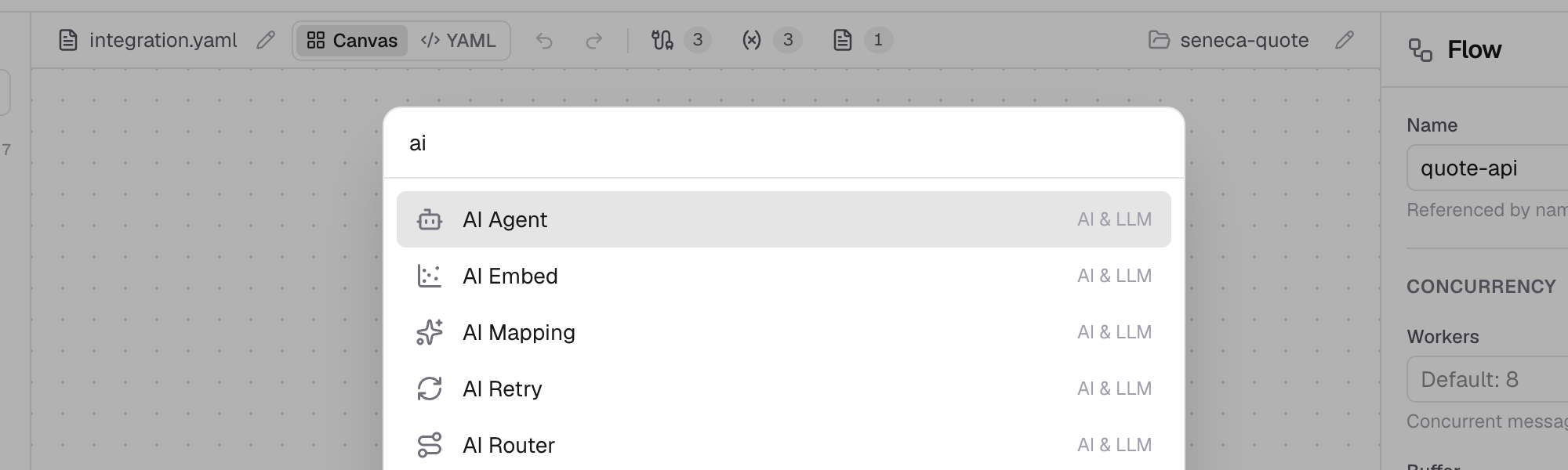
The component palette
⌘/ opens a search box over every block in the palette. Type to filter, move with ↑ and ↓, and press Enter to insert the highlighted block after the selected one, or at the end of the active flow when nothing is selected. Escape closes it.
On the canvas
These work while the Flows view shows the canvas, and not while you type in a field.
| Keys | Action |
|---|---|
| ⌘= (or ⌘+) | Zoom in. |
| ⌘- | Zoom out. |
| ⌘0 | Reset the zoom to 100%. |
| ⇧1 | Fit every flow in view. |
| ⌘ + scroll, or pinch | Zoom around the pointer. A plain scroll still pans. |
| Delete or Backspace | Delete the selected block, connection or source. |
| Escape | Clear the selection. |
You can also move a block without the mouse: Tab to its drag handle, press Space to pick it up, move it with the arrow keys, and press Space again to drop it, or Escape to cancel.
In CEL fields
Every field that takes a CEL expression completes as you type.
| Keys | Action |
|---|---|
| Ctrl+Space (or ⌘Space) | Open completions at the caret. |
| ↑ / ↓ | Move through the completions. |
| Enter or Tab | Accept the highlighted completion. |
| Escape | Close the completions, and nothing else: an open dialog stays open and the selection stays selected. |
On macOS, ⌘Space usually opens Spotlight and Ctrl+Space may switch input sources, so the system takes the key before the field sees it. Completions still open as you type; to use the key, free one of them under System Settings → Keyboard → Keyboard Shortcuts.
Brackets and quotes pair themselves: typing an opener inserts its closer, typing the closer steps over it, and Backspace between an empty pair deletes both.
In the console's CEL tab, ⌘Enter evaluates the expression rather than running the integration.
In menus and dialogs
| Where | Keys |
|---|---|
| Any dropdown or popover (file switcher, source picker, env and resource launchers, a spy or run menu) | Escape closes it. |
| Naming a new file or renaming one | Enter commits, Escape cancels. |
| The integration title | Enter saves the new name. |
| A delete confirmation | Enter confirms, Escape cancels. |
| The console header | Enter or Space collapses or expands it. |
Octo Desktop
Octo Desktop puts the same commands in its native menus, with the same keys, and adds a few of its own:
| Keys | Action |
|---|---|
| ⌘, | Settings. |
| ⌘N | New flow. |
| ⌘⇧N | New config file. |
| ⌘⇧O | Open a folder. |
| ⌘1 / ⌘2 / ⌘3 | Switch to Flows, Resources or Testing. Resources and Testing appear once the project has resources or test suites. |
In Desktop, ⌘= , ⌘- and ⌘0 zoom the canvas when it is showing and the whole window everywhere else.