
Agentic Self-Healing
From a platform alert to an agent that triages it, fixes it with permission, and asks a person in Slack before it touches anything.
This guide wires the whole loop: a watch fires, an agent reads the logs and traces, reports what it found, and (with permission) fixes it. We build it in three stages, each of which works on its own.
- Create a watch that publishes an alert when something is wrong.
- Point it at Dr. Octo, the platform agent, and let him triage and report by email.
- Put a person in the loop over Slack: the agent posts its finding to a thread, you push back or confirm, and every change asks you first.
Stage 3 comes as a sample app you can download and import. If you already know alerting and Dr. Octo, start at stage 3.
Stage 1: create a watch
A watch is a standing question about your telemetry: a set of conditions, a schedule, and what to do when the answer changes. The alerting page explains the condition kinds and the cooldown. Here we create one watch and give it two actions.
There are two ways to make one, and neither is the API. The observability API is not exposed to you yet, so a watch is created either in the platform or by asking Dr. Octo for it.
In the platform
Open Metrics → Alerts and press New watch. The editor asks six numbered questions rather than presenting a form of fields, because each answer narrows the next: the app you pick at the top decides what the conditions below it can measure.
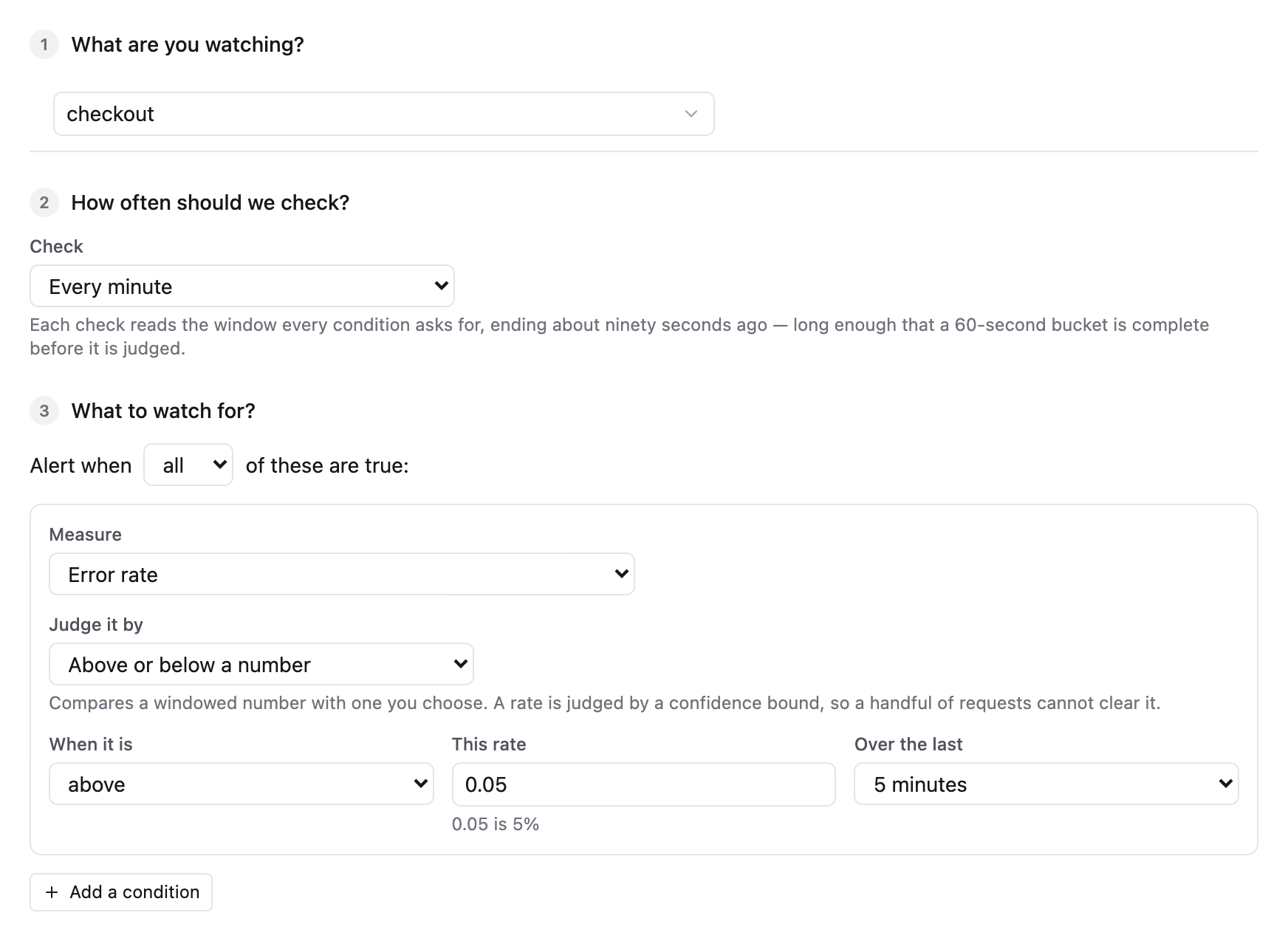
The first three questions are the standing question itself.
| The editor asks | What it sets |
|---|---|
| What are you watching? | The app every condition below is scoped to. |
| How often should we check? | The interval the whole set is evaluated on. Each check reads a window ending about ninety seconds ago, so a 60-second bucket is complete before it is judged. |
| Alert when all / any of these are true | How several conditions are combined. |
| Measure | The metric. Error rate is failed runs over total runs. |
| Judge it by | The condition kind: above or below a number, a sudden change, or stopped reporting. |
| When it is, This rate, Over the last | The comparison, the number, and the window it is measured over. |
This rate is a proportion, and the editor says so underneath the box: 0.05 is 5%. Writing 5 there would mean 500%, which never fires. The statistical guards that stop one failed run on a quiet morning from reading as a 100% error rate are not in this form; the service applies them for you.
The fourth question is the one this guide turns on.
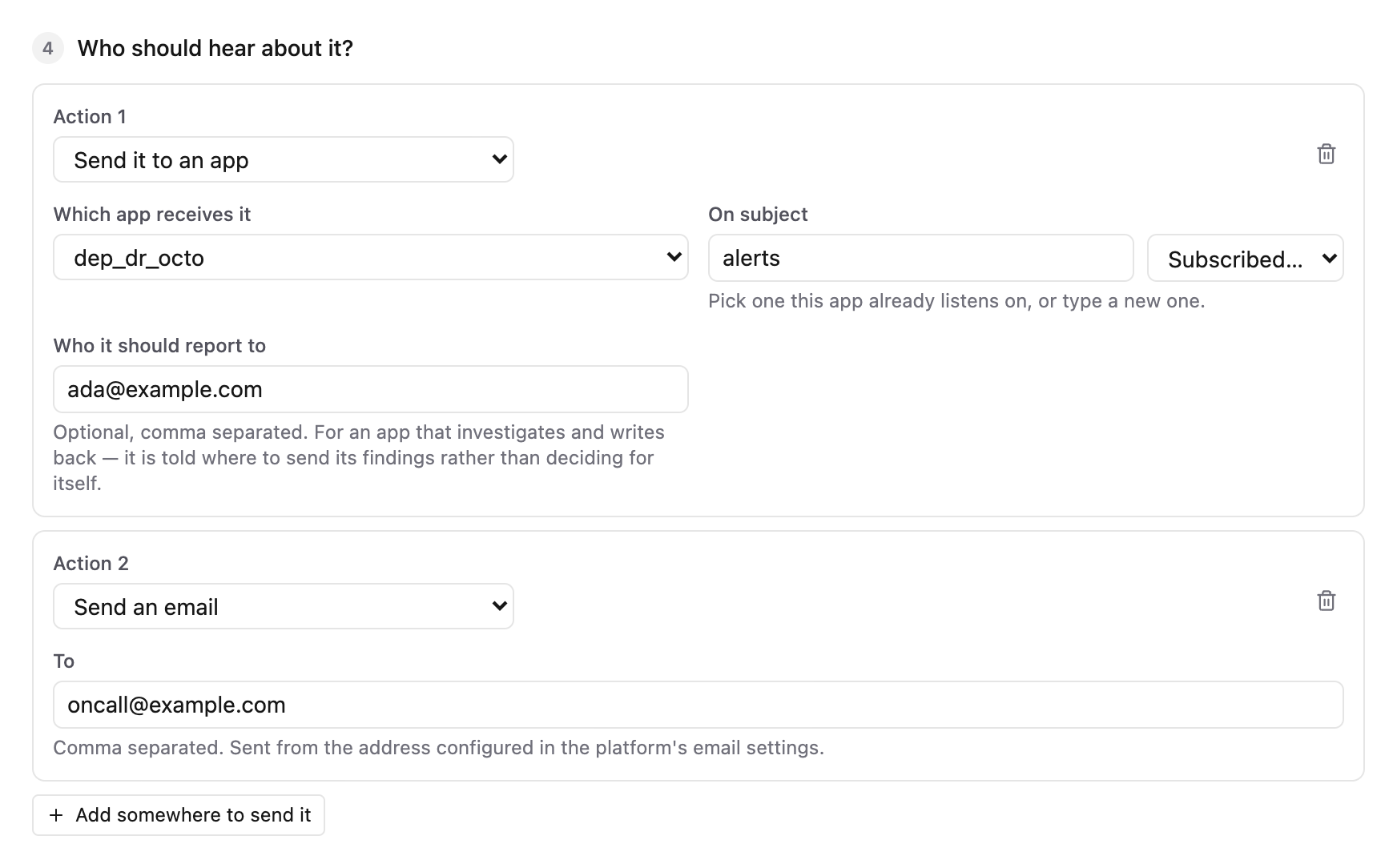
Send it to an app is the action that wakes an agent, and it takes three answers.
- Which app receives it is the deployment that acts on the alert, which is usually not the one the alert is about. In stage 2 that is Dr. Octo's deployment.
- On subject is a name both ends agree on. The picker suggests the subjects that app already listens on, and you can type a new one. The runtime scopes it per deployment, so the receiving flow subscribes to the bare name.
- Who it should report to is where the receiving app sends what it finds. It lives on the action rather than inside the app, so whoever edits the watch decides who hears about it rather than leaving that to a model.
Send an email takes a comma-separated To, sent from the address in the platform's email settings.
The last two questions decide how often you are told and what to call the watch. Try it now runs the definition against real data without saving it or telling anybody, which is how a threshold gets tuned against history that already exists. Create saves it.
Or ask Dr. Octo
If Dr. Octo is installed, describing the watch is enough. He previews it against real data before he saves it, tells you if it is already firing, and adds the noise guards the form does not expose.
Watch the checkout integration. Tell me when more than 5% of its runs fail for five minutes. Send it to the dr-octo app on subject
alerts, report to ada@example.com, and email oncall@example.com as well.
What arrives on the subject is the notification as JSON, carrying kind (open, repeat, resolve or close), watchName, incidentId, and every condition's outcome. The full shape is under what arrives.
Stage 2: let Dr. Octo triage
Dr. Octo ships with a fourth flow, troubleshooter, which is the same agent woken by an alert instead of a question. To use it:
- Install him from Admin → Agent.
- In your watch's Send it to an app action, pick the dr-octo deployment and keep the subject
alerts, which is hisALERT_SUBJECTdefault. - Put the addresses that should get his reports in Who it should report to.
That is the whole integration. The flow subscribes with an ordinary events source, and its first block is a gate: only open and repeat start a run. A recovery or a close is logged and dropped, because a sixty-turn investigation into an app that just got better helps nobody.
- name: troubleshooter
  workers: 1
  source:
    type: events
    settings:
      subject: ${ALERT_SUBJECT}
  process:
    - type: validate
      name: only-bad-news
      settings:
        rules:
          - expr: 'body.kind == "open" || body.kind == "repeat"'
            message: a recovery or a close carries nothing to triage
    # lift the alert's facts into variables, read this watch's history …
    - type: ai-agent
      name: troubleshoot
      connector: llm
      answer: text
      maxIterations: ${AGENT_TROUBLESHOOT_ITERATIONS}
      tools: [platform_operator, integration_builder, read_docs, send_email_report]
    # … write the finding into the history, email the final report
The full flow is in orchestrator/agent/config.yaml. What he does with an alert is described under he also triages alerts; the short version is triage, report, and then fix only if the installation permits it.
You get two emails per run. The agent sends the first when it has a finding, and the flow sends the second when the run ends, with a transcript of every tool call. The second one is sent by the flow rather than the model so that a run which gave up still reports. Both go to reportTo only.
He also remembers. Each run reads this watch's history from the persistent object store (alert-history:<watchId>, the last 50 episodes) and writes its finding back, so the fourth identical alert in two hours reads as a fault rather than a blip.
Fixing is off by default. The checkbox Allow Dr. Octo to troubleshoot applications under Admin → Agent sets AGENT_TROUBLESHOOT_FIX=true and rolls his pods. Off, he still investigates and reports; on, he can scale a deployment or redeploy a definition with nobody watching.
To watch a run as it happens, open the Logs view: every turn and tool call is logged as it is made.
Stage 3: a person in the loop over Slack
Stage 2 fixes things, or does not, by a checkbox. Most teams want the middle: the agent investigates on its own, a person reads the finding, and nothing changes until that person says so. Slack is where that conversation already happens.
The loop we build:
alert ──▶ triage ──▶ Slack thread + email
                         │
          person replies in the thread (push back, or confirm)
                         │
                         ▼
        agent refines, or moves on to the fix (asks first) ──▶ email
The mechanism underneath is tool authorization: a tool with an authorize condition parks the run and emits a tool_authorization event, and the answer arrives as a later invocation on the same conversation. The human in the loop guide covers the primitive over HTTP; here the question and the answer both travel through a Slack thread.
Your own triage agent
The sample is samples/alert-triage-slack/config.yaml. Download it and Import it from the Integrations page, or read it alongside this section. It is one integration with three flows.
A user integration cannot call Dr. Octo's specialist flows: flow-ref reaches flows in the same integration only. So this agent holds its own tools, and they are narrower than his.
Connectors. Two http-client connectors give the agent its boundaries: octo for the orchestrator's API and observability for stored logs and traces. Their base URLs come from ORCHESTRATOR_URL and OBSERVABILITY_URL, which are in every runtime pod. Reaching either takes a token that opens it, so tick both platform access grants under Advanced when you deploy — octo_change sends POST, PUT, PATCH and DELETE under /deployments, and the agent reads integrations to work out what it is looking at. The token itself is env.PLATFORM_TOKEN, which matters here more than anywhere: this agent is woken by an alert, so there is no person whose credential it could borrow.
connectors:
  - name: slack
    type: slack
    settings:
      botToken: ${SLACK_BOT_TOKEN}
      signingSecret: ${SLACK_SIGNING_SECRET}
  - name: claude
    type: llm-anthropic
    settings:
      apiKey: ${ANTHROPIC_API_KEY}
  - name: octo
    type: http-client
    settings:
      baseURL: ${ORCHESTRATOR_URL}
  - name: observability
    type: http-client
    settings:
      baseURL: ${OBSERVABILITY_URL}
Flow 1: on-alert. An events source on subject triage, the same gate on body.kind as Dr. Octo's, and a multi-transform that lifts incidentId, watchName and reportTo into variables and writes the opening turn into vars.turn. Then it hands off with a flow-ref to the agent flow. Point your watch's Send it to an app action at this deployment, on subject triage.
Flow 3: triage. The agent itself, sourceless, so both the alert and every Slack reply reach the same block. Three settings do the work:
- type: ai-agent
  name: triage-agent
  connector: claude
  answer: text
  input: vars.turn
  # one conversation per incident, whoever is talking to it
  memoryThreadId: '"incident:" + vars.incidentId'
  # a reply that answers a parked fix is recognised by these two
  authorizeId: 'has(vars.authorizeId) ? vars.authorizeId : ""'
  authorizeAllow: 'has(vars.authorizeAllow) && vars.authorizeAllow'
  # a person on Slack is slower than one watching a panel
  authorizeTimeout: ${AUTHORIZE_TIMEOUT}
memoryThreadId is keyed on the incident, so a pushback lands on top of what the agent already found instead of starting over. The two authorize* expressions are empty on an ordinary turn and set only when a Slack reply answers a pending question; the flow that receives the reply decides which.
The tools are three sub-flows. observability_api and octo_read are rest-dynamic blocks with allowMethods: [GET]. octo_change is the one that can alter the installation, and it always asks:
- name: octo_change
  description: Change the installation through the orchestrator's API. A person approves each call in the Slack thread.
  authorize: "true"
  inputSchema: |
    { "type": "object", "required": ["method", "path"],
      "properties": { "method": { "type": "string", "enum": ["POST", "PUT", "PATCH", "DELETE"] },
                      "path": { "type": "string" }, "body": { "type": "object" } } }
  process:
    - type: rest-dynamic
      settings:
        connector: octo
        method: body.method
        path: body.path
        body: 'has(body.body) ? body.body : {}'
        allowMethods: [POST, PUT, PATCH, DELETE]
        pathPrefix: /deployments
Inside a tool's process, the model's arguments are the message body. pathPrefix bounds the tool to deployments regardless of what the model asks for, and authorize: "true" means every call parks.
When a call parks, the block's events sub-flow sees a tool_authorization event. The sample posts the question into the incident's thread and writes the authorization id down under pending-auth:<incidentId>, so the next reply in that thread can answer it:
events:
  process:
    - type: if
      condition: body.type == "tool_authorization"
      then:
        process:
          - type: slack-send-message
            settings:
              connector: slack
              target: env.SLACK_CHANNEL
              threadTs: vars.threadTs
              text: '"I want to run " + string(body.tool) + " with " + toJson(body.input) + ". Reply approve or deny."'
          - type: object-write
            settings:
              key: '"pending-auth:" + vars.incidentId'
              value: '{"authorizationId": body.authorizationId}'
After the agent answers, the flow posts the finding into the thread (a top-level message the first time, which becomes the thread), remembers the thread under slack-thread:<ts> and incident-thread:<incidentId>, and emails reportTo through POST /email/send on the orchestrator. The email is sent by the flow, for the same reason Dr. Octo's second report is.
Flow 2: on-slack-event. An http source at /slack/events with rawBodyVar: rawBody, then slack-verify-request, the URL-verification branch, and a slack-event block that keeps only human messages inside a thread:
- type: slack-event
  settings:
    eventTypes: [message]
    filter: body.botId == null && body.threadTs != null
An object-read on slack-thread:<threadTs> finds the incident; a reply in a thread nobody opened is dropped. Then the flow asks whether the agent is waiting on this person:
- type: object-read
  name: pending-authorization
  settings:
    key: '"pending-auth:" + vars.incidentId'
    as: pending
    existsVar: hasPending
    default: '{}'
- type: if
  condition: vars.hasPending
  then:
    process:
      - type: set-variable
        settings: { name: authorizeId, value: vars.pending.authorizationId }
      - type: set-variable
        settings: { name: authorizeAllow, value: string(body.text).lowerAscii().contains("approve") }
      - type: object-delete
        settings: { key: '"pending-auth:" + vars.incidentId' }
- type: flow-ref
  settings:
    flow: triage
With a pending question, the reply becomes the answer: authorizeId names the parked call and authorizeAllow is true only for a reply containing "approve". Anything else denies, and so does silence past AUTHORIZE_TIMEOUT (30 minutes in the sample). Without a pending question, the reply is an ordinary turn: the agent reads it, looks again, and posts a refined finding into the same thread.
Set it up.
- Create a Slack app with the
chat:writescope, subscribe it to themessage.channelsevent, and invite the bot to a channel. Put the channel id inSLACK_CHANNEL. - Deploy the integration with both platform access grants ticked, and point the Slack app's Events API request URL at the deployment's
/slack/eventsroute. - Create a watch whose Send it to an app action names this deployment and uses subject
triage.
The suites next to the sample (on-alert_test.yaml, on-slack-event_test.yaml, triage_test.yaml) run under task runtime:test:samples and pin the loop without a model: the gate, the thread bookkeeping, the approve and deny paths, and that the email goes to reportTo only.
Or extend Dr. Octo
Dr. Octo is an ordinary integration, so you can open dr-octo in the editor and change the troubleshooter flow instead of running a second agent. Add a slack connector with the two secrets bound to new environment variables, then either give the agent a post_to_slack tool built on slack-send-message, or add authorize: "true" to the fixing path and a memoryThreadId keyed on the incident so a reply can answer it. His platform_operator specialist already holds the observability and orchestrator tools, so nothing else changes.
A platform upgrade rolls Dr. Octo out again. The roll-out snapshots your edited definition under a tagged version and then overwrites it with the new bundle, so your Slack changes need re-applying after each upgrade. For anything you want to keep, prefer the separate integration above.
Next steps
- Alerting explains why a watch did or did not fire.
- Tool authorization covers what travels when a run parks, and what happens when nobody answers.
- A production Slack agent shows the fast-acknowledgement and threading patterns this sample keeps simple.
- Traces is where the agent's own runs show up, tool call by tool call.